ELIXIR Spatial course
Practical 6: Multi-slice spatial data integration (part 1)
8th October 2026
Benedetta Manzato, Emma Vonk (Leiden University Medical Center)
- Uni-modal slides alignment with MOSCOT
import os
import warnings
import anndata as ad
import matplotlib.pyplot as plt
import numpy as np
import scanpy as sc
import squidpy as sq
from moscot.problems.space import AlignmentProblem
from PIL import Image
warnings.filterwarnings("ignore")
/app/.pixi/envs/default/lib/python3.11/site-packages/docrep/decorators.py:43: SyntaxWarning: 'n_jobs' is not a valid key! doc = func(self, args[0].__doc__, *args[1:], **kwargs) /app/.pixi/envs/default/lib/python3.11/site-packages/docrep/decorators.py:43: SyntaxWarning: 'show_progress_bar' is not a valid key! doc = func(self, args[0].__doc__, *args[1:], **kwargs)
Read data
# Set up paths
base_dir = "../data/Practical6_1/data/"
image_files = [
f"{base_dir}/tissue_hires_image_1.png",
f"{base_dir}/tissue_hires_image_2.png"
]
moldata_files = [
f"{base_dir}/coronal_1.h5ad",
f"{base_dir}/coronal_2.h5ad"
]
Inspect your images:
fig, axes = plt.subplots(1, 2, figsize=(12, 6), dpi=200)
for ax, img_path in zip(axes, image_files):
img = Image.open(img_path)
ax.imshow(img)
ax.axis('off')
ax.set_title(f"{os.path.basename(img_path)} - Size: {img.size[0]}x{img.size[1]}", fontsize=12)
plt.tight_layout()
plt.show()

Make sure that the coordinate file and the images are in the same coordinate framework: plot images with coordinates overlaid
fig, axes = plt.subplots(1, 2, figsize=(12, 6), dpi=200)
for ax, img_path, h5ad_path in zip(axes, image_files, moldata_files):
img = Image.open(img_path)
adata = sc.read_h5ad(h5ad_path)
df = adata.obs[['x', 'y']].copy()
ax.imshow(img)
ax.scatter(df['x'], df['y'], s=5, c='blue', alpha=0.5)
ax.axis('off')
ax.set_title(f"{os.path.basename(img_path)}\nSize: {img.size[0]}x{img.size[1]}", fontsize=10)
plt.tight_layout()
plt.show()

import gc
# collect garbage
gc.collect()
4357
# Load data
adata1 = ad.read_h5ad(f'{base_dir}/coronal_1.h5ad')
adata2 = ad.read_h5ad(f'{base_dir}/coronal_2.h5ad')
adata1.obs['sample'] = 'section1'
adata2.obs['sample'] = 'section2'
# Define a cleanup function to fix .var duplicates
def prepare_adata(adata, name):
if adata.var.index.duplicated().any():
print(f"Found duplicate gene names in {name}. Fixing now...")
adata.var_names_make_unique() # This appends '-1', '-2' etc. to duplicate gene names
return adata
# Apply to both
adata1 = prepare_adata(adata1, 'section1')
adata2 = prepare_adata(adata2, 'section2')
# 3. Concatenate using index_unique to handle .obs collision
adata = ad.concat(
[adata1, adata2],
keys=['sec1', 'sec2'],
index_unique='_'
)
adata.layers['norm_1e4'] = sc.pp.normalize_total(adata, target_sum=1e4, inplace=False)['X'].toarray() # we use normalized counts for each cell as input gene expression
Found duplicate gene names in section1. Fixing now... Found duplicate gene names in section2. Fixing now...
adata.obsm['spatial'] = np.column_stack([adata.obs['x'], adata.obs['y']])
Visualize datasets coordinate before alignment:
sq.pl.spatial_scatter(adata, shape=None, library_id="sample", color="sample")

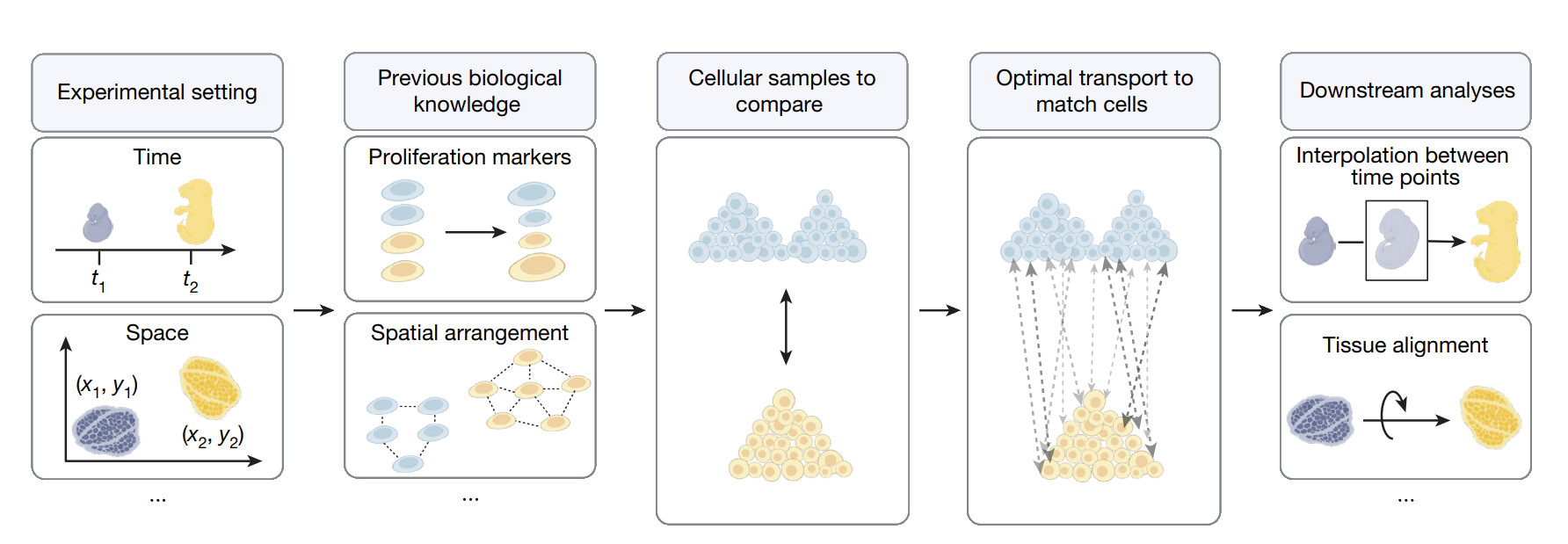
With moscot, it is possible to learn a cross-dataset mapping by leveraging Fused Gromov-Wasserstein (FGW) optimal transport [Vayer et al., 2018]. A basic description of the algorithm is the following:
Given a set of observations that share some features in the metric space, and some other features in different metric spaces, the FGW method aims at finding the optimal matching between these two set of observations, based on both shared and unique features. In our case:
the “shared” metric space could be the one defined by a set of genes that is measured across spatial transcriptomics data.
the “unique” metric spaces are the spatial coordinates, which are unique for each single slide.
Prepare the AlignmentProblem
The AlignmentProblem exposes the FGW algorithm in a user-friendly API. First, we need to prepare() the problem. In this particular case, we need to pay attention to the policy parameter. The available policies are:
'star': if we wish to align all slides to a reference slide.
'sequential' (default): if we wish to align each slide to the subsequent one, in case we have a sequence of slides.
The choice of the policy varies with the use cases, for the sake of this tutorial we will showcase the 'sequential' policy.
ap = AlignmentProblem(adata=adata)
ap = ap.prepare(batch_key="sample", policy="sequential")
INFO Computing pca with `n_comps=30` for `xy` using `adata.X` INFO Normalizing spatial coordinates of `x`. INFO Normalizing spatial coordinates of `y`.
Solve the AlignmentProblem
The alpha value, which balances the weight of each loss (“unique” vs. “shared” spaces). With alpha close to 0, the “shared” space loss is weighted more, with alpha close to 1, the “unique” space loss is balanced more.
ap = ap.solve(alpha=0.9)
INFO Solving `1` problems INFO Solving problem OTProblem[stage='prepared', shape=(2310, 2235)].
Analysis of the transport plans
Solving the OT problem means that we computed the optimal transport plans between the various slides. We can now use it to align our datasets. There are two methods to perform the alignment:
'warp' (default): which warps the spatial coordinates of the source slide to the target slide.
'affine': which computes the affine transformation from the transport map and simply shift and rotate the coordinates preserving the original space.
Let’s for instance warp the slides to a reference slide of choice. To do so, we need to pass as reference the key corresponding to the slide of choice. When using the align(), by default it modifies the input AnnData object in place by saving the transformed coordinates in a new obsm key.
Warping alignment
ap.align(reference="section2", key_added="spatial_warp")
sq.pl.spatial_scatter(
adata, shape=None, spatial_key="spatial_warp", library_id="sample", color="sample"
)

ap.align(reference="section1", key_added="spatial_warp")
sq.pl.spatial_scatter(
adata, shape=None, spatial_key="spatial_warp", library_id="sample", color="sample"
)

Affine alignment
ap.align(reference="section2", mode="affine", key_added="spatial_affine")
sq.pl.spatial_scatter(
adata, shape=None, spatial_key="spatial_affine", library_id="sample", color="sample"
)

ap.align(reference="section1", mode="affine", key_added="spatial_affine")
sq.pl.spatial_scatter(
adata, shape=None, spatial_key="spatial_affine", library_id="sample", color="sample"
)
