
Let’s be honest about who this is for. You’re a researcher or a coordinator, not a designer. You make a flyer or a slide a few times a year, usually in PowerPoint or a free tool like Adobe Express. This chapter won’t make you a designer, and doesn’t try to.
What it will do is make you good enough to direct tools and judge the result: templates and AI do the production, and your job is to know what good looks like, so you can ask for it and recognise it.
You can’t prompt for, or assess, what you can’t recognise. “Make it look more professional” is a useless instruction – to you or to an AI – unless you know that professional usually means fewer fonts, more whitespace, stronger hierarchy and tighter alignment. The eye comes first; the tools come second.
Prefer to watch? The whole chapter as a talk
Most of this chapter comes from the CONVERGE workshop series talk Design made easy for communicators.
Lesson 1 of 5 · about 3 minutes
What “good” looks like
You don’t need design theory. A handful of tells separate amateur from professional: one message, a clear hierarchy, generous whitespace, things that line up, and colour used with intention. Design exists to make your message land – if the content doesn’t fit the format, change the format rather than cramming.
Quick check
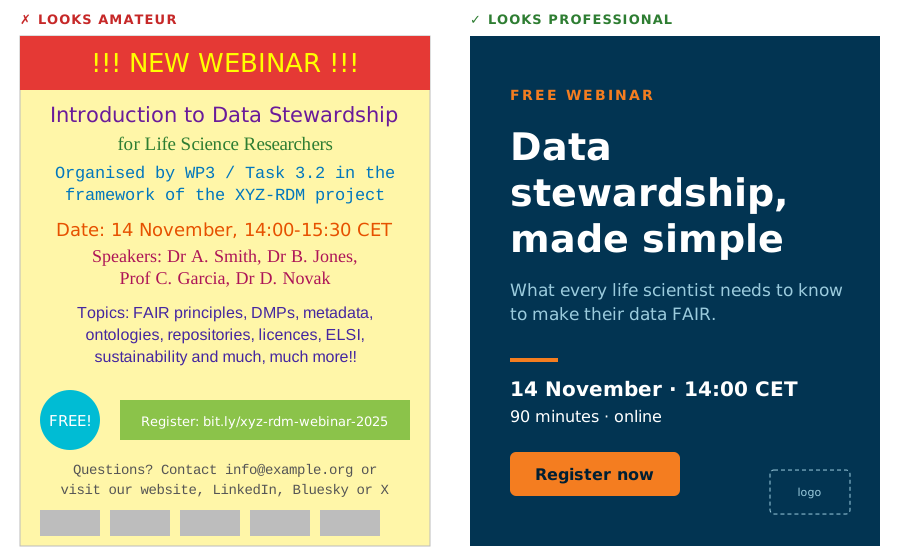
On which flyer can you find the date in under two seconds?
Answer: The navy one. On the navy flyer the date sits on its own line, in bold, with space around it. On the yellow one it competes with five colours and four fonts.
Go deeper: the full amateur vs professional checklist
| Looks amateur | Looks professional | | — | — | | Tries to say five things at once | Says one thing; everything else supports it | | Everything the same size | Clear hierarchy – the most important thing is the biggest | | Three or four fonts | One or two fonts, combined with purpose (for ELIXIR: Open Sans for print and slides, Lato for the web) | | Every corner filled | Generous whitespace; the design can breathe | | Elements floating randomly | Alignment, spacing and distribution – things line up on a clear grid | | A rainbow of colours | Colour used with intention, not a traffic light – one or two ELIXIR colours that mean something, with enough contrast to read | | Looks like no other ELIXIR material | Consistent with the ELIXIR brand (see Chapter 7: Branding) |
Spot the problems: what's wrong with the left one?
- No hierarchy – every line is roughly the same size, so the eye has nowhere to land.
- Four fonts and five colours – it looks noisy, and none of the colours means anything.
- Process, not value – “WP3 / Task 3.2” tells a researcher nothing about why they should attend.
- Everything included – four speakers and eight topics belong on the registration page, not the flyer.
- Text on bright colours – white on light green and yellow on red are hard to read (see Chapter 5: Accessibility).
- Logo soup – a row of logos competes with the message. One logo, in a corner, is enough.
Lesson 2 of 5 · about 3 minutes
Colour
Two colours and one accent. In ELIXIR materials, royal blue and white do most of the work; orange is the accent – use it once, on the thing that matters. And every text colour has to pass a contrast check.
Five colours, no meaning
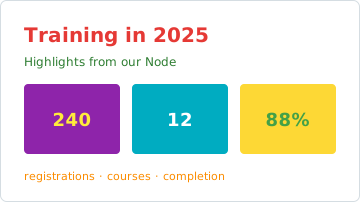
Every element shouts, so nothing stands out – and the yellow and orange text is hard to read.
Two colours and one accent

Navy and white do the work; orange is used once, on the number that matters.
Quick check
Orange text on a white background – does it pass the contrast check?
Answer: No – it's too pale for text. At 2.7:1 it's well below the 4.5:1 that normal text needs. Use orange for large or decorative elements, and bold to emphasise words in body text.
Go deeper: the ELIXIR palette and which colour pairs work
From the ELIXIR Brand Guidelines (2025). Royal blue is the primary colour and grey the neutral; orange and olive green are accents. Copy these hex codes into any design tool or AI prompt.
#023452Primary#4d4848Primary / text#f47d20Accent#bebf32Accent- Use tints of the same colour rather than reaching for new ones – the Brand Guidelines give official tints at 75%, 50% and 25%.
- Don’t be afraid of dark backgrounds – they can look striking and professional.
- The Brand Guidelines suggest bright orange for highlighting text. On white, use it for large or decorative elements and bold for emphasis in body text, because orange text on white doesn’t meet contrast requirements.
- Test any other combination with the WebAIM contrast checker (recommended by the Brand Guidelines); Coolors, Adobe Color and Buttonbuddy also check colour-blindness.
Normal text needs at least 4.5:1:
13:1 navy on white
Body text, headings
9:1 grey on white
Body text
4.8:1 orange on navy
Headings and accents
4.8:1 navy on orange
Buttons, labels
2.7:1 orange on white
Too pale for text
2.7:1 white on orange
Too pale for text
2.0:1 olive on white
Decoration only
Lesson 3 of 5 · about 3 minutes
Type
One font; hierarchy from size and weight. For ELIXIR that’s Open Sans for slides, documents and print, and Lato for websites. Make the most important thing the biggest, and let everything else step down.
Four fonts, one size

Four personalities fighting, and with everything the same size you don’t know where to start reading.
One font, clear hierarchy
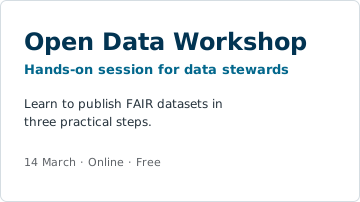
Size, weight and colour create the order: title, then subtitle, then detail.
Quick check
Your slide needs a title, a subtitle and body text. How many fonts should it use?
Answer: One – vary the size and weight. One font is enough: size, weight and colour create the order. If you ever pair two, pair a sans-serif with a serif – never three.
Go deeper: recommended sizes from the Brand Guidelines
For documents and slides, the Brand Guidelines (p. 16) recommend:
| Text | Size | Style |
|---|---|---|
| Document title | 28 pt | Bold, royal blue |
| Headings | 14 pt and 12 pt | Bold, royal blue |
| Body text | 10–11 pt, at least 1.15 line spacing | Regular, dark grey |
| Smallest text (e.g. a copyright line) | Never below 8 pt | Regular |
| Slides | At least 18 pt | – |
When you do need to pair fonts, a sans-serif heading with a serif body (or vice versa) is a reliable trick – Fontjoy generates pairings for you.
Lesson 4 of 5 · about 3 minutes
Layout and the squint test
Tidy beats fancy. Most amateur-looking designs aren’t ugly, just untidy: line things up, keep gaps even, use one text edge. Then check your hierarchy with the squint test.
Untidy
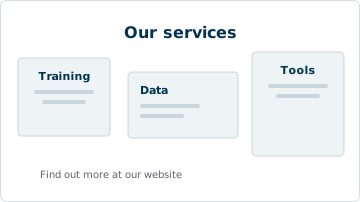
Nothing is technically wrong – it just looks careless. Boxes don’t line up, gaps vary, text is centred in some boxes and not others.
Tidy
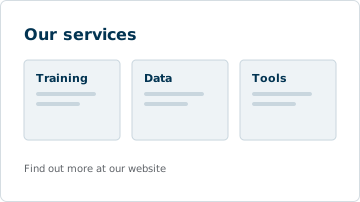
Same content: one size, equal gaps, one left edge. That’s the Align and Distribute tools doing the work.
The squint test. Squint at your design until it blurs – or step back from the screen. Whatever you can still make out is what people see first. If that isn’t your key message, make it bigger, bolder or give it more space.
Nothing survives
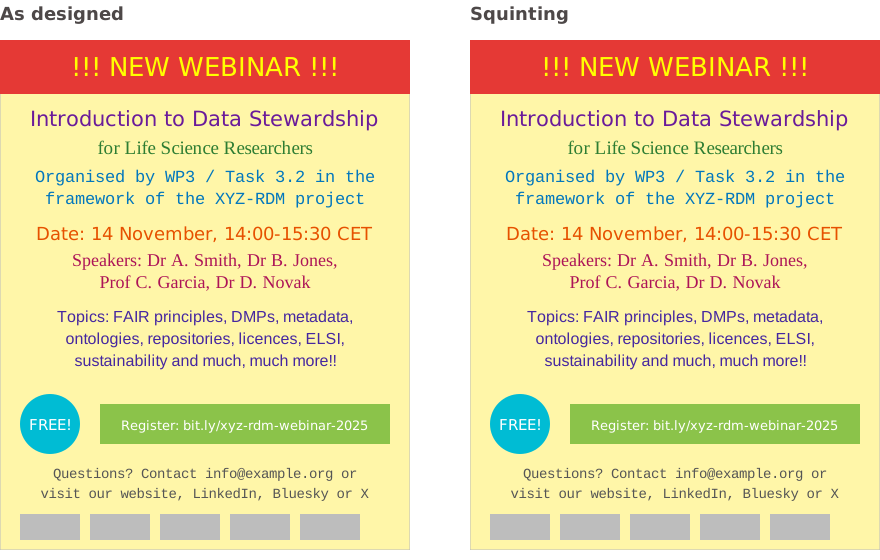
Blurred, it’s just coloured stripes – the date and the sign-up link are lost.
The message survives
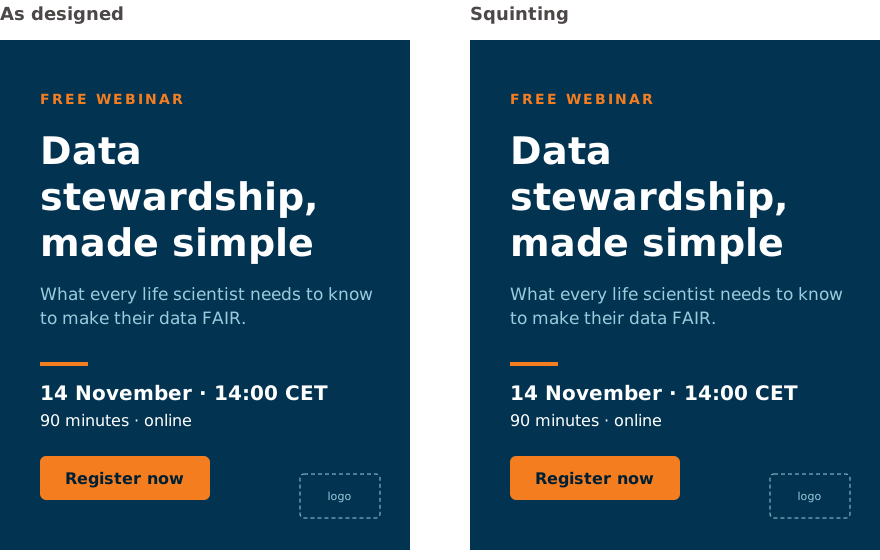
Blurred, you still see the headline and the orange button – exactly what matters.
Quick check
You squint at your flyer and the logo is the clearest thing on it. What does that tell you?
Answer: The hierarchy is wrong – your key message should stand out most. What survives the squint is what people see first. The message – the event, the date, the action – should win, not the logo.
Go deeper: tidying a layout in PowerPoint
- Select your objects and use the Align and Distribute tools instead of eyeballing it.
- Align text blocks to the same edge, and give every paragraph the same space before and after it.
- Use blank space to separate sections, and make headings and links obvious through colour and position.
Lesson 5 of 5 · about 3 minutes
Let the tools do the production
Start from a template, and give AI constraints, not vibes. A good template has already made the hard design decisions – use the official ELIXIR templates from the intranet branding page, or save your own ELIXIR-branded template in Adobe Express once and reuse it. When you use AI, tell it the purpose, the format, the one message, the brand colours and fonts, and the tone.
Weak prompt
“Make a nice banner for our webinar.”
Strong prompt
“A clean, professional square banner (1080×1080) announcing an ELIXIR webinar for researchers. Use ELIXIR royal blue #023452 as the background and bright orange #f47d20 as the only accent, Open Sans for all text, generous whitespace. One headline, the date and space for a logo in the corner. Minimal, not busy.”
Never let AI generate the ELIXIR logo, and never trust text baked into an AI image. AI mangles logos and produces gibberish or misspelled text. Generate the background or layout with AI if you like, then add the official logo (from the intranet branding page) and the real text yourself.
Quick check
Your AI tool keeps producing banners in random blues and greens. What's the fix?
Answer: Give it the exact ELIXIR hex codes. AI won't respect the ELIXIR palette unless you give it the hex codes – #023452 royal blue and #f47d20 orange. Vague requests get vague results.
Go deeper: what to put in a prompt, and template tips
- Purpose and audience – “a webinar announcement for researchers”
- Format and dimensions – “LinkedIn post, square, 1080×1080”
- The one key message – the single thing it must communicate
- Brand constraints – the ELIXIR palette as exact hex codes and the font (Open Sans; Lato for web graphics)
- Tone – “clean and professional, lots of whitespace, not busy”
With templates, resist customising: every change to a good template is a chance to make it worse. Change the words and the image; leave the structure alone. And always check accessibility – contrast, ALT text and never leaving key information trapped inside an image (see Chapter 5: Accessibility).
Go deeper: free maps for Node locations and data
amCharts SVG Maps has free, editable vector maps of countries and regions – handy for showing Node locations or event geography in the ELIXIR colours. It can also make pixel (dot) maps, which suit our field well: plotting data points, samples or sites across a region.
Go deeper: animated GIFs in PowerPoint (no AI)
You can make a smooth, looping GIF in PowerPoint alone – no AI and no video editor. Two things matter:
- Keep it native and light. Animate with PowerPoint’s own motion paths and shapes rather than importing video or lots of images – otherwise the file becomes too heavy to export well.
- Use Morph, and loop it. Put each state on its own slide and use the Morph transition between them. Make the last slide identical to the first so the loop is seamless, then turn looping on when you export.
Export via File → Export → Create Animated GIF. Keep it short, never let it flash rapidly (a seizure risk), and give it ALT text or surrounding context (see Chapter 5: Accessibility).

An RDMkit promo made in PowerPoint – five seconds, looping, under 0.5 MB.
Put it into practice
A workflow you can repeat every time:
- Define the one message, the audience and the format/size before opening any tool.
- Start from an ELIXIR template, or set your brand constraints (palette hex codes, Open Sans / Lato).
- Draft it – in Adobe Express or with an AI tool given a constraint-rich prompt.
- Judge it against the What “good” looks like table and the squint test.
- Fix the one or two biggest problems (usually: too much text, weak hierarchy).
- Drop in the official logo and check accessibility (contrast, ALT, no text-as-image).
- Get one other person to glance at it before you publish.
Project: fix one real design
Take a recent slide or flyer from your Node.
- Run it through What “good” looks like. Which two things are weakest?
- Either fix those two in your existing tool, or recreate it from an ELIXIR template (or an AI prompt with full brand constraints) and compare.
- Do the squint test on both versions. Does the key message survive?
The goal isn’t a perfect design – it’s to build the habit of judging before publishing, which is the only design skill you really need.
Further resources
| Category | Resource | Description |
|---|---|---|
| External resource | Adobe Express | Recommended design tool for non-designers - free and browser-based, with templates and AI-assisted features (text-to-image, background removal, resizing). Save an ELIXIR-branded template once and reuse it. |
| External resource | amCharts SVG Maps | Free, editable vector maps of countries and regions worldwide - useful for showing Node locations or event geography. |
| External resource | Coolors | Free colour palette generator with built-in contrast and colour-blindness testing - pick two colours and check they’re accessible. |
| External resource | Adobe Color | Free colour wheel and palette tool with accessibility and contrast checks. |
| External resource | Buttonbuddy | Free tool for accessible colour contrast, especially for links and buttons. |
| External resource | Fontjoy | Generates font pairings automatically - useful when you need to combine a heading and a body font. |
| ELIXIR resource | ELIXIR Brand Guidelines (2025) | The official rules for using ELIXIR logos, colours and fonts, and for branding Node websites (public PDF). |
| ELIXIR resource | ELIXIR logos and other visuals | Download the official ELIXIR, Node and service logos, icons and templates (intranet - consortium login required). |
| ELIXIR resource | CONVERGE workshop series - Design made easy for communicators | Practical video on design made easy for communicators - design tips for non-designers in research communications. |