
ELITMa modules are written by people from the Nodes who have done the work. This page explains how a chapter is put together and gives you the building blocks to copy. For how the machinery behind them works, see Site components.
The site is built on the ELIXIR Toolkit Theme (ETT). This page covers what is specific to ELITMa; for general formatting – headings, tables, links, images, code – see the ETT Markdown cheat sheet.
The fastest way to start is to copy an existing chapter and change it. Everything below works in any module – if you want to see a component in context, the Communication module has an example of each.
How a module is organised
A module has a main page (its orientation page, which lists the chapters automatically) and three kinds of page, each in its own place:
pages/modules/02-data-management.md          the module's main page
pages/modules/02-data-management/
  01-dm-intro.md  02-dm-node-context.md …    chapters – numbered, in the sidebar
  examples/                                  real-world examples and case studies
  dive-deeper/                               longer explanations beyond one chapter
  dm-all-examples.md                         All examples page (in the sidebar, below the chapters)
| Page | type |
In the sidebar? | How readers reach it | Template |
|---|---|---|---|---|
| Chapter | the module’s type (e.g. Data Management) |
yes, numbered | sidebar, chapter circles, previous/next | pages/modules/_templates/chapter.md |
| Real-world example or case study | Real_world_example |
no | cards in the chapter; All examples; topic pages | …/_templates/example.md |
| Dive deeper | Dive_deeper |
no | “Dive deeper” cards at the end of the chapter | …/_templates/dive-deeper.md |
Every example and Dive deeper page ends with a “Back to chapter” link. Start from the templates in pages/modules/_templates/: each has all the front matter, with comments, and a skeleton of the page. (Jekyll ignores folders that start with _, so the templates aren’t published.)
Anatomy of a chapter
Front matter
Every chapter starts with front matter like this:
---
title: Understanding your audience
description: One sentence for tiles and the chapter list.   # keep it short
summary: A longer intro shown under the title.
page_id: mod_comm_2            # unique; used for links, pathways and examples
type: Communication            # the module type
sidebar: module-communication  # the module's sidebar file in _data/sidebars/
page_img: /icons/icon-module-communication.svg
time: 20 minutes               # used to calculate module and pathway totals
status: ready                  # ready | in development – sets the module's group on the home page
audience: [Communications Officers, Project Managers]
learning_outcomes:
  - Identify and prioritise your Node's key stakeholder groups
related_pages:
  Dive_deeper: [dm-dd-gorc-framework]     # "Dive deeper" cards at the end of the chapter
  Real_world_example: [dm-ex-rdm-portfolio]   # "See it in practice" cards – only examples
                                          # that don't already have a card in the text
ref_to_main_resources:
  - converge-comms                       # ids from _data/tool_and_resource_list.yml
---
If a description or summary contains a colon followed by a space, wrap the whole value in double quotes, or the site will not build.
At the bottom of the page, Dive_deeper pages appear under Dive deeper and Real_world_example pages under See it in practice, followed by the Further resources table. related_pages can also list other pages by type, for example a chapter in another module (Communication: [mod_comm_5]); those appear under Related pages, on the same card but with that module’s icon and name. Don’t list chapters of your own module – previous/next and the sidebar already connect them.
The ETT documentation lists every front matter field the theme understands.
Write time as minutes (15 minutes, 60 minutes). The chapter list, the module tiles on the home page and the pathway cards all add these up, so there is no total to keep in sync by hand.
Adding the chapter to the module
Add the chapter to the module’s sidebar file in _data/sidebars/. The number at the start of the title is what makes it a chapter: it puts the page in the chapter list, the previous/next buttons and the breadcrumb.
subitems:
  - title: 02 Understanding your audience   # two-digit number = a chapter
    url: /02-comms-audience
  - title: All resources                    # no number = an extra, outside the sequence
    url: /comms-all-resources
    hr: true                                # draws a divider line above this item
Renumber by editing the sidebar; nothing else needs to change. For all sidebar options, see Sidebar in the ETT documentation.
The metadata box
You don’t need to add it: every chapter gets the time, audience and learning-outcomes box at the top automatically (plus its status while it isn’t ready – a finished chapter doesn’t need a label), from its front matter. It appears on any module page with a time or status value, so example pages and a module’s main page don’t get one.
Reusable components
Use these to give chapters structure. Each one below shows the code to copy, then how it renders.
Links
Write links in normal Markdown. They are styled automatically – blue and underlined, so they are readable and don’t rely on colour alone – so don’t add colours or HTML to them.
- Internal pages: use the page’s file name without
.md, e.g.(05-comms-accessibility). On a module’s main page (which lives one folder deeper, at/modules/<module>/), write({{ '/05-comms-accessibility' | relative_url }})instead, or the link will point to the wrong place. - External sites: use the full address. An icon marking external links is added automatically.
- Link text says where the link goes: “read the ELIXIR Brand Guidelines”, not “click here” or a bare URL. Screen-reader users often jump from link to link, so each one must make sense on its own.
- Intranet pages: say so in the text, because readers outside the consortium can’t open them.
See [Chapter 5: Accessibility](05-comms-accessibility) before you publish.
Download the [ELIXIR Brand Guidelines (PDF)](https://elixir-europe.org/sites/default/files/documents/elixir-brand-guidelines-2025.pdf).
Renders as:
See Chapter 5: Accessibility before you publish. Download the ELIXIR Brand Guidelines (PDF).
For more link options, see Links in the ETT documentation.
Callouts
Provided by the theme. Use note, tip, important or warning, and keep them rare – a page with one callout reads like a chapter; a page with six reads like an alarm system. The ETT documentation shows more options, such as custom titles, longer content and nested callouts.
{% include callout.html type="tip" content="Start from an approved template, not a blank page." %}
Renders as:
Start from an approved template, not a blank page.
A callout’s text is printed as-is, so Liquid written straight into it (anything in {{ }}) won’t work. To put a link built with relative_url in a callout, build the text first with capture:
{% capture impact_tip %}Assessing impact is covered by the [Impact module]({{ '/modules/impact/' | relative_url }}).{% endcapture %}
{% include callout.html type="tip" content=impact_tip %}
Exercise box
Wrap every exercise – and every reflection – in an exercise box so learners can spot it. Start the box with its heading (“Exercise: …”, “Quick exercise: …”, “Reflection: …”); a small pencil is added in front of it automatically. The markdown="1" part lets you write normal Markdown inside. Keep example cards and tips that follow the exercise outside the box.
<div class="exercise-box" markdown="1">
### Quick exercise
Think of a recent project or result from your Node.

* Build a priority matrix for that particular case.
* For each group, write one sentence that would catch their attention.
</div>
Renders as:
Quick exercise
Think of a recent project or result from your Node.
- Build a priority matrix for that particular case.
- For each group, write one sentence that would catch their attention.
Quick check
A one-question check with instant feedback, right after you’ve taught an idea – the learner answers, sees ✓ or ✗ and a one-line explanation. Give two to four answers separated by |, and say which one is right (1 = first). Keep the explanation to a sentence or two; it’s shown after any answer.
{% include quick-check.html question="Orange text on a white background – does it pass the contrast check?" options="Yes – it's an ELIXIR colour|No – it's too pale for text" correct="2" explain="At 2.7:1 it's well below the 4.5:1 that normal text needs." %}
Renders as:
Quick check
Orange text on a white background – does it pass the contrast check?
Answer: No – it's too pale for text. At 2.7:1 it's well below the 4.5:1 that normal text needs.
Chapter 8 shows a whole chapter built as short lessons: an idea, one visual, a quick check, and the detail tucked into “Go deeper” panels. To number the lessons, put a small label right above each lesson’s heading:
<p class="lesson-label">Lesson 1 of 5 · about 3 minutes</p>
Checklists
Start list items with - [ ]. Readers can tick them, and their ticks are remembered in their browser.
- [ ] Is the official logo present and correctly used?
- [ ] Are the colours and fonts from the ELIXIR palette?
Renders as:
- Is the official logo present and correctly used?
- Are the colours and fonts from the ELIXIR palette?
Expandable panel
For a checklist, a worked answer or a how-to that not every reader needs. Keep the blank lines around the content. This is the theme’s collapsible text, styled for ELITMa.
<details markdown="1">
<summary>News item checklist: check before you publish</summary>

- [ ] Does the first sentence tell the reader what happened and why it matters?
- [ ] Have I named the people involved?

</details>
Renders as:
News item checklist: check before you publish
- Does the first sentence tell the reader what happened and why it matters?
- Have I named the people involved?
Before and after
For showing a weak version next to a better one – a post, a sentence, a prompt. Change the two labels to suit; the ✗ and ✓ come with the classes. A single box can also stand on its own (for example a ✗ “The problem” box followed by a ✓ “The fix” box). If a box ends with a table or a list, leave a blank line before its closing </div>, or the table won’t render.
<div class="compare" markdown="1">
<div class="compare-item compare-item--dont" markdown="1">
<p class="compare-label"><i class="fa-solid fa-xmark" aria-hidden="true"></i>Weak prompt</p>

"Make a nice banner for our webinar."
</div>
<div class="compare-item compare-item--do" markdown="1">
<p class="compare-label"><i class="fa-solid fa-check" aria-hidden="true"></i>Strong prompt</p>

"A clean square banner announcing an ELIXIR webinar. One headline, the date, lots of whitespace."
</div>
</div>
Renders as:
Weak prompt
“Make a nice banner for our webinar.”
Strong prompt
“A clean square banner announcing an ELIXIR webinar. One headline, the date, lots of whitespace.”
Example card
A highlighted link to another page – usually a real-world example – placed where the reader needs it, rather than only at the bottom of the page. It uses the linked page’s own title and description.
{% include example-card.html page_id="comm-ex-elead" %}

{% include example-card.html page_id="comm-ex-elead" lead="Your own sentence instead of the page description." %}
Optional settings: lead (your own sentence), label (a different small heading) and icon (a Font Awesome icon name).
A page that isn’t a real-world example – such as a chapter in another module – gets the same card with its module’s icon and name. This is how Related pages look at the bottom of a chapter:

Accessibility is not a design add-on – it's how you make sure everyone can actually read, hear and use what you communicate, in every format.
Renders as:
A real ELIXIR example of rewriting a list of activities as an impact narrative for the Annual Report
For a mention in the running text, add compact=true: the card then shows just the label and title, without the description, so it doesn’t interrupt the reading. (Use full cards where the description helps, e.g. in lists.)
{% include example-card.html page_ids="dm-ex-sweden-clarifying-the-node-remit" compact=true %}
Renders as:
When a section points to several examples, list their page_ids in page_ids, separated by commas. The cards sit side by side, two per row on wider screens:
{% include example-card.html page_ids="dm-ex-sweden-clarifying-the-node-remit, dm-ex-luxembourg-node-member-onboarding" %}
Renders as:
Vision and mission statements can help clarify what a team works on, why it matters and who the work is for.
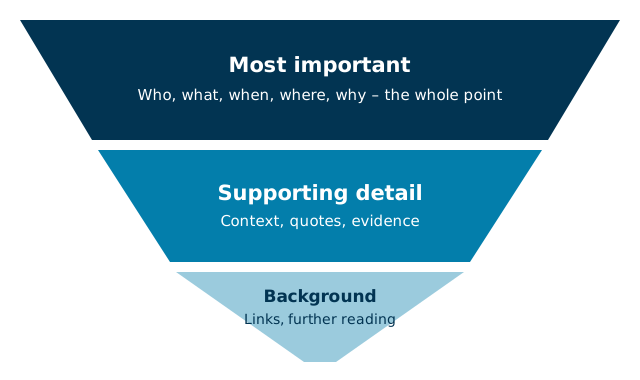
Figure with a caption
Always write ALT text that says what the image shows, not just what it is. Put images in images/<module>/. For other ways to add images, see Images in the ETT documentation.
<figure class="figure-diagram">
  <img src="{{ '/images/communication/inverted-pyramid.svg' | relative_url }}" alt="The inverted pyramid: most important information at the top, supporting detail in the middle, background at the tip.">
  <figcaption>Readers who stop early still get the point.</figcaption>
</figure>
Renders as:
Video
Embeds a YouTube video at the full width of the text, with a direct link underneath. It uses YouTube’s privacy-enhanced mode, so no tracking cookies are set until someone presses play. Use the id from the video’s address (the part after v=) and a title that says what the video is – screen readers announce it.
{% include video.html youtube="fFAlT51EPZQ" title="Design made easy for communicators (CONVERGE workshop series)" %}
An optional caption="..." adds a line before the link.
Download button
For templates and other files in assets/downloads/. Say what the file is and its format.
<a href="{{ '/assets/downloads/news-item-template.docx' | relative_url }}" class="btn-download" download>
  <i class="fas fa-download"></i>Download the news item template (Word)
</a>
Renders as:
Download the news item template (Word)
Real-world example pages
An example page tells how a Node actually did something; a case study is a longer one, often from a workshop. Both are type: Real_world_example and live in the module’s examples/ folder – not in the sidebar. Copy pages/modules/_templates/example.md.
- Name it like the others:
dm-example-sweden-clarifying-the-node-remit.md, withpage_id: dm-ex-sweden-clarifying-the-node-remit(comms-example-…/comm-ex-…in Communication). - Say where it belongs. Give it topics if the module has them – the first topic decides which chapter and section “Back to chapter” returns to. Otherwise (e.g. a case study) set
back_toto the chapter’spage_id. - Write a one-line
description– the takeaway. It’s what the card shows. - Link it from the chapter, in one of two ways, not both:
- in the text, where the chapter mentions it: a compact example card (
compact=true) – one highlighted example per mention; - at the end, under “See it in practice”: list it in the chapter’s
related_pagesunderReal_world_example. Use this for examples the text doesn’t name, e.g. a case study that supports several chapters.
- in the text, where the chapter mentions it: a compact example card (
Every example also appears on the module’s All examples page automatically – one grid of cards, from {% include module-examples.html sidebar="module-data-management" %}. The same line, with the module’s sidebar, gives any module an All examples page.
Topics
Examples can be tagged with topics from a fixed list – a controlled vocabulary – kept in _data/topics/<sidebar>.yml (for Data management: _data/topics/module-data-management.yml). Each topic has an id, a title, a one-line description, and the chapter and section it comes from.
- Tag an example in its front matter:
topics: [gaps-to-action, who-to-involve](ids from the list). - Where the “Topics:” line should appear on the page (usually under Node and Authors), write
{% include example-topics.html %}. It shows the topics as links.
Every topic gets its own page automatically (/dm-topic-gaps-to-action), listing all examples with that topic; the topic chips on All examples link to them. These pages aren’t in the sidebar. Their “Back to chapter” link goes straight to the topic’s section in the chapter, and so does an example’s: the data file is the single place that connects an example (through its first topic) to its chapter and section. To add a topic, add it to the data file – its page appears on the next build.
Dive deeper pages
A longer explanation that goes beyond one chapter – such as Data management’s GORC explainers – is a Dive deeper page. Copy pages/modules/_templates/dive-deeper.md into the module’s dive-deeper/ folder, name it like dm-deeper-gorc-framework.md (page_id: dm-dd-gorc-framework), and give it type: Dive_deeper and back_to its chapter. It uses the same card as examples, with a magnifying-glass icon. Where it goes depends on whether readers need it:
- The chapter needs it at a certain point (e.g. “read this before the exercises”): put a compact card in the text there –
{% include example-card.html page_ids="dm-dd-gorc-framework" compact=true %}. - It’s optional further reading: list it in the chapter’s
related_pagesunderDive_deeper, and it appears at the end of the chapter under Dive deeper.
Use one or the other, not both.
Resources
Resources for the “Further resources” tables and the All resources page live in _data/tool_and_resource_list.yml. Add an entry once, then list its id under ref_to_main_resources in any chapter that should show it.
- id: writing-in-sciences
  name: Writing in the Sciences (Stanford University)
  url: https://www.coursera.org/learn/sciwrite
  description: Free online course on clear scientific writing.
  category: external_resource     # template, elixir_resource or external_resource
  module: mod_comm
Mark intranet resources clearly in the description (for example “intranet – consortium login required”). The ETT documentation explains the tools and resources data file in more detail.
Learning pathways
A pathway is a short route through some chapters for a particular reader, shown as a card on the module’s main page. Once a reader picks one, each chapter shows their step and the next chapter on the route. Pathways live in one file per module, named after the module’s sidebar – for example _data/pathways/module-communication.yml:
- id: new-to-elixir                 # lowercase, no spaces; appears in links as ?path=new-to-elixir
  title: New to ELIXIR
  description: Find the people, channels and shared resources the network already has.
  chapters: [mod_comm_3, mod_comm_4]   # page_ids, in order
Chapter numbers, links and the total time are filled in automatically. A module without a pathways file simply shows no pathways. While a reader follows a pathway, the chapter navigation at the bottom of each page switches to the pathway’s steps – the same circles and previous/next cards, on an orange “Your pathway” panel.
Module status
The home page and the Modules page group the modules into Ready to use, In development and Planned – there’s no status label on the cards themselves. Each module’s group is its status in _data/module_types.yml: ready, in development or planned. Change it there when a module moves on.
Chapters have their own status too (ready or in development); it only shows in the box at the top of a chapter while the chapter isn’t ready.
Starting a new module’s online materials
- Its entry already exists in
_data/module_types.yml(title, description, icon,url); change itsstatusfromplannedtoin development. - Create the module’s main page,
pages/modules/<nn-module>.md(see an existing one), and its sidebar file_data/sidebars/module-<name>.ymlwithtitle_urlpointing to that page. - Write chapters from
pages/modules/_templates/chapter.mdand add them to the sidebar with two-digit numbers. - Optional extras, each one line in the sidebar under a divider (
hr: true): an All examples page ({% include module-examples.html sidebar="module-<name>" %}) and an All resources page ({% include module-resources.html module_id="mod_<id>" %}), plus a pathways file and a topics file if you need them.
Crediting contributions
Everyone who contributes should be credited. By contributing, you agree that your content is shared under CC BY 4.0 (code under MIT) – see the licence. Only add logos or images from elsewhere if you may reuse them, and credit their source.
On the Contributors page. Add yourself to _data/CONTRIBUTORS.yml. Your role decides which group you appear in and the colour of your badge:
Jane Doe:
  git: janedoe                      # GitHub username; also used for your photo
  orcid: 0000-0000-0000-0000
  affiliation: Example Institute / ELIXIR-XX
  role: Contributor                 # Lead or Contributor
On a chapter. List contributors by the same name in the chapter’s front matter; they appear in the credits at the bottom of the page:
contributors: [Jane Doe, Xenia Perez Sitja]
Preview your changes
Run the site locally with bundle exec jekyll serve and open the address it prints. Most edits appear on reload; changes to _config.yml only take effect after you stop the server (Ctrl+C) and start it again.
First time? The ETT README explains how to install Jekyll and run the site locally, or run it with Docker instead.

Xenia Perez Sitja
Earlham Institute / ELIXIR-UK